From RPA that stops whenever a screen changesto automation you can fix.
RPA has automated a great deal of routine work. It has also created new problems: robots stop when screens change, only their builder can fix them, and unmanaged robots multiply. Kitewell redesigns web automation around those problems.
Three problems we hear about RPA
It stops when a screen changes
Problem
Robots record screen coordinates and elements, so even a small change to a web system stops them.
In Kitewell
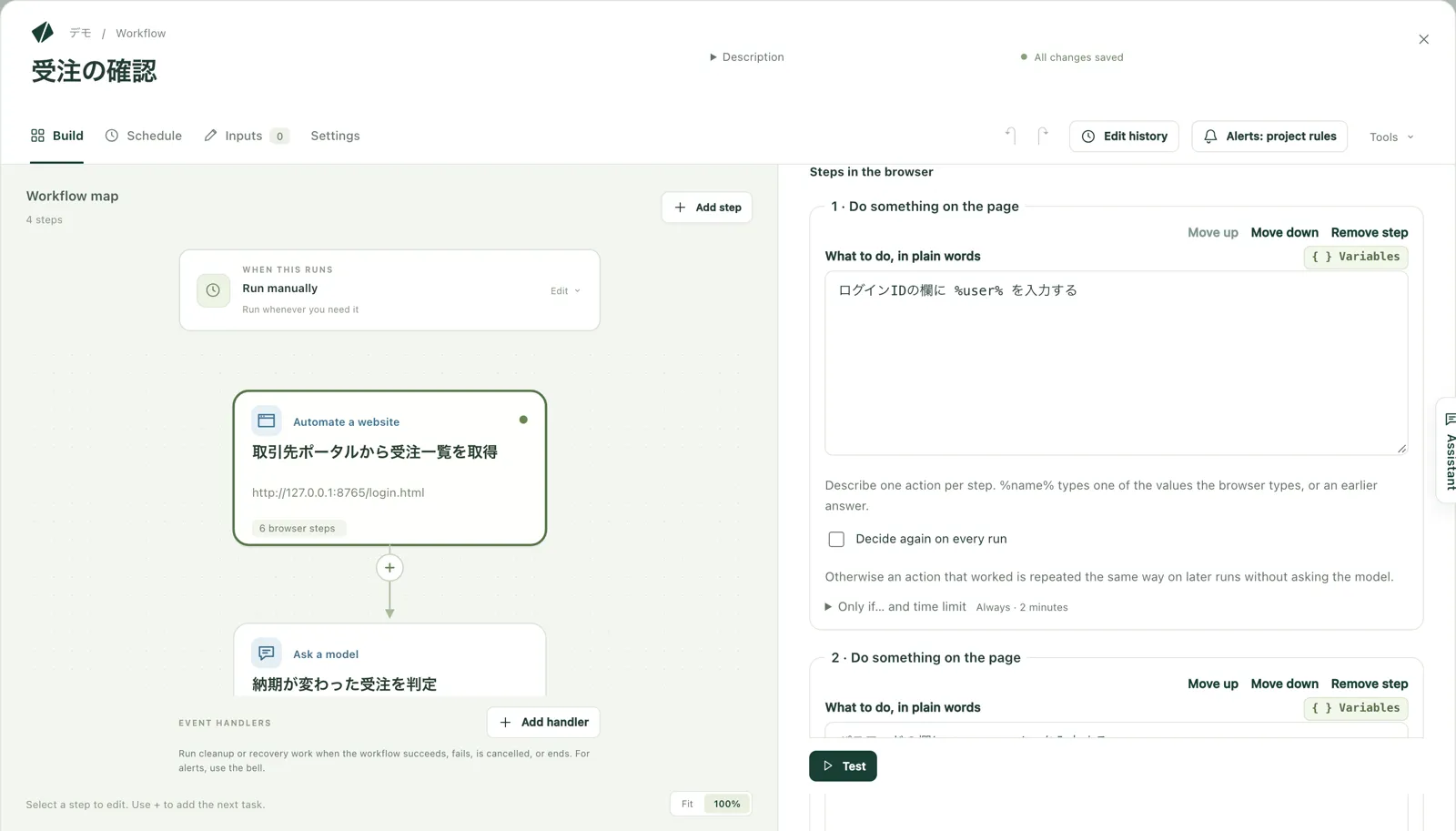
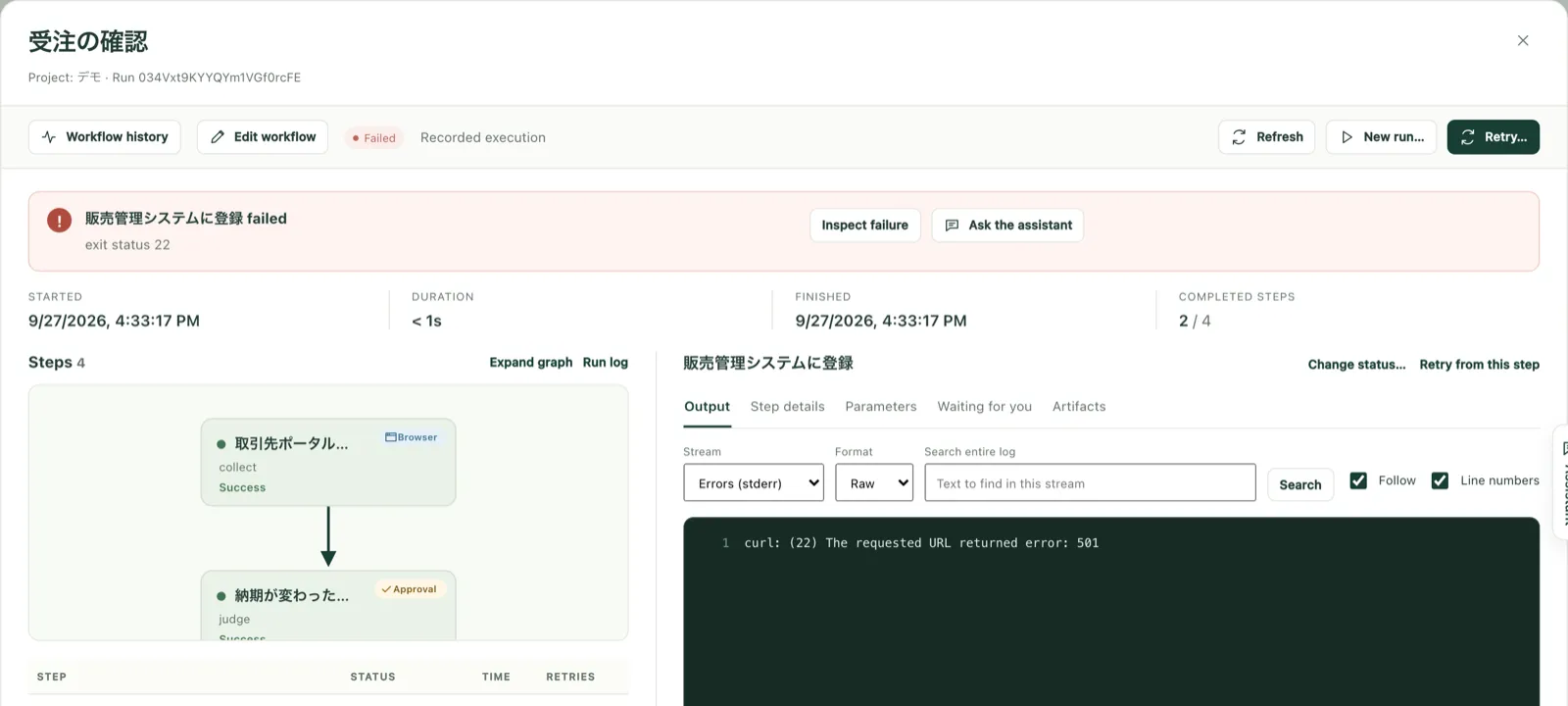
In Kitewell you write the steps in words, and AI reads the screen to operate it. When a run stops, the reason is kept in a screenshot and the logs.
Only the builder can fix it
Problem
Only the person who built a scenario understands it. After a transfer or resignation, robots nobody can fix are left behind.
In Kitewell
Steps are written in everyday language, and the assistant explains them and proposes fixes when asked. You review each change as a diff before applying it.
Robots nobody keeps track of
Problem
Robots built by each department multiply, and nobody knows what they do or when they stopped.
In Kitewell
Every run, change, and approval is recorded, and failures and waiting approvals are sent to the people responsible.
Write steps as sentences, fix them where they stop
You write workflows in the language of the work, not in a robot's settings. When a run stops, ask the assistant from the step that stopped.
How Kitewell differs from RPA
Kitewell is not better on every count. Some work suits RPA better.
| Aspect | Typical RPA | Kitewell |
|---|---|---|
| Screen operation | Records and replays coordinates and screen elements | Steps written in words; AI reads the screen to operate it |
| When a screen changes | Scenarios often need to be fixed | Less affected, because it does not depend on element positions or names |
| Building and fixing | Built by a specialist in a dedicated editor | Built and fixed by talking to the assistant, reviewed as a diff, then applied |
| When a run stops midway | Start over, or finish by hand | Continue from the step that stopped |
| When a decision is needed | People handle it outside the robot | A person decides in an approval step, and it is recorded |
| Keeping track | Management tends to be split robot by robot | Run history, change history, and alerts in one place |
| Desktop applications | Can operate Windows desktop applications and Excel | Covers work in a web browser; desktop applications are not supported |
| Cost per operation | Included in the license | Each screen operation incurs AI model usage fees |
| Speed | Replays fixed operations quickly | Each operation takes longer, because AI reads the screen |
Capabilities vary by RPA product. This compares general tendencies.
How to migrate
You do not have to replace everything at once. We recommend moving the web work that breaks often and matters most first, and leaving work RPA handles well where it is.
1
Inventory
List the robots running today and the ones that often stop.
2
Selection
Choose one to three tasks that happen entirely on the web, break often, and matter most.
3
PoC
Build Kitewell workflows on your real screens and data, and measure the effect.
4
Migration
Move the remaining work in turn, and set up your team to fix and run it.
Work that moves easily from RPA
Check property listings across portals
Compare your property register with what each listing portal shows, and flag differences in rent or availability to the person responsible.
Review SaaS accounts
Collect user lists from each SaaS admin console and match them against current employees. Accounts of leavers or long-unused accounts are disabled only after approval.
Collect orders and delivery dates from supplier portals
Every morning, collect new orders and delivery date changes from several customers' supplier portals and, after review, record them in the sales system.
Start by choosing what to move
We look at your current robots and support you from choosing the work to move through to a PoC.