Collecting orders from each customer's Web-EDI in one list
Every customer sends orders its own way. Customer A has its own ordering system, B a Web-EDI, C a supplier portal. Each morning someone signs in to each one, checks the orders, downloads a CSV, puts the columns in order, and enters them into the sales system. The more customers, the longer the morning.
This column explains how to automate collecting orders from each customer’s site into one list, with a run we recorded.
Key points
- If a customer offers a data feed, such as an API or file delivery, use it before automating the screens
- When you automate the screens, the work is in the sign-ins. A user ID and password run unattended; with a one-time code, a person types only the code
- On three sites, the first run learned the steps with AI, and the second replayed them without AI
First, check for a way that skips the screens
Some customers can send order data as files. In Japanese retail, the standard EDI is 流通BMS (Ryutsu BMS); by its council’s estimate, more than 21,600 wholesalers and manufacturers had adopted it as of June 1, 2025. Other customers offer an API, or deliver CSV files over SFTP or email.
Where those exist, nothing breaks when a screen changes, and large volumes stay steady. Automating the screens is for customers with no data feed, whose sites you can only sign in to and read.
What differs from site to site
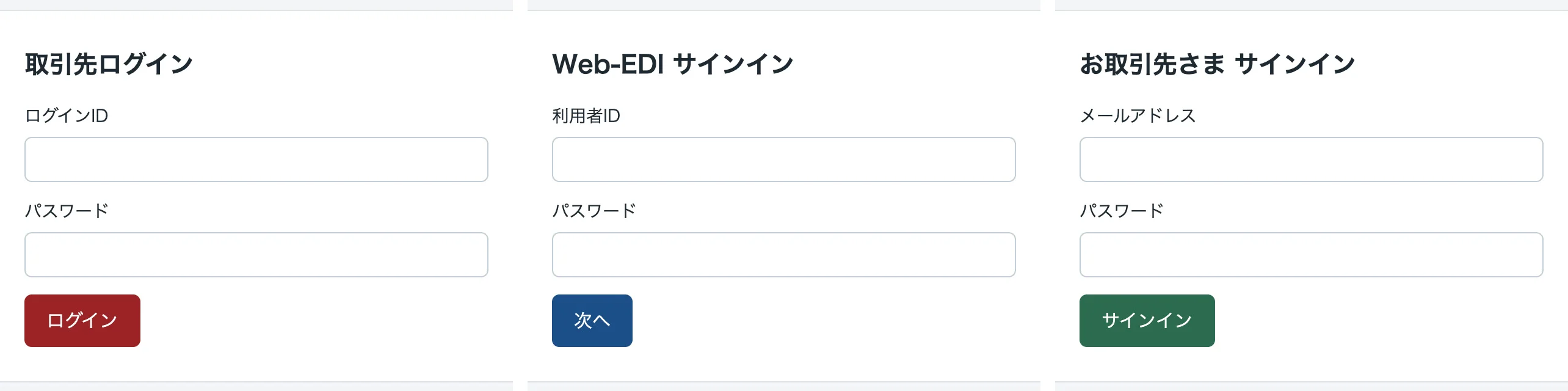
Customers’ sites agree on neither look nor steps:
- Sign-in: what the ID is called (login ID, user ID, email), the button’s wording, and whether there is an extra check
- CSV format: column names and order, date formats, and units (some send cases and units per case)
- Terms of use: whether automated use is allowed (check the terms before automating)
How each kind of sign-in is handled
| Kind of sign-in | Can it run automatically? | How Kitewell handles it | What you decide |
|---|---|---|---|
| User ID and password | Yes | The password is kept on the PC as a secret and typed by the browser; AI sees only its name | Whether the customer will issue an account for the automation |
| One-time code (email, SMS, app) | A person types only the code | The run stops and asks for the code; once someone enters it in the run’s page, the same browser carries on | Who receives the code, and when |
| Client certificate | On a PC that holds the certificate | Add the certificate for the site in Device settings | Which PC holds it, and who manages it |
| IP address restriction | On a PC on an allowed line | It runs on your own PC, so it uses your office line as is | Whether to ask the customer to add you to the allow list |
| Image challenges and other bot checks | Don’t automate | If the site refuses the browser, the run stops and records the refusal | Ask the customer about a data feed |
A one-time code is recorded with the run, so this is only for codes that expire quickly. Never type a password into a run’s page.
A recorded run
On October 19, 2026, we ran it against three stand-in sites built for this column. The setting is a food wholesaler that takes orders from a supermarket, a food distributor, and a home center. All three sign in with a user ID and password, and one also asks for a one-time code. The sites and Kitewell ran on the same Mac, and the AI model was Claude Sonnet 5.5.
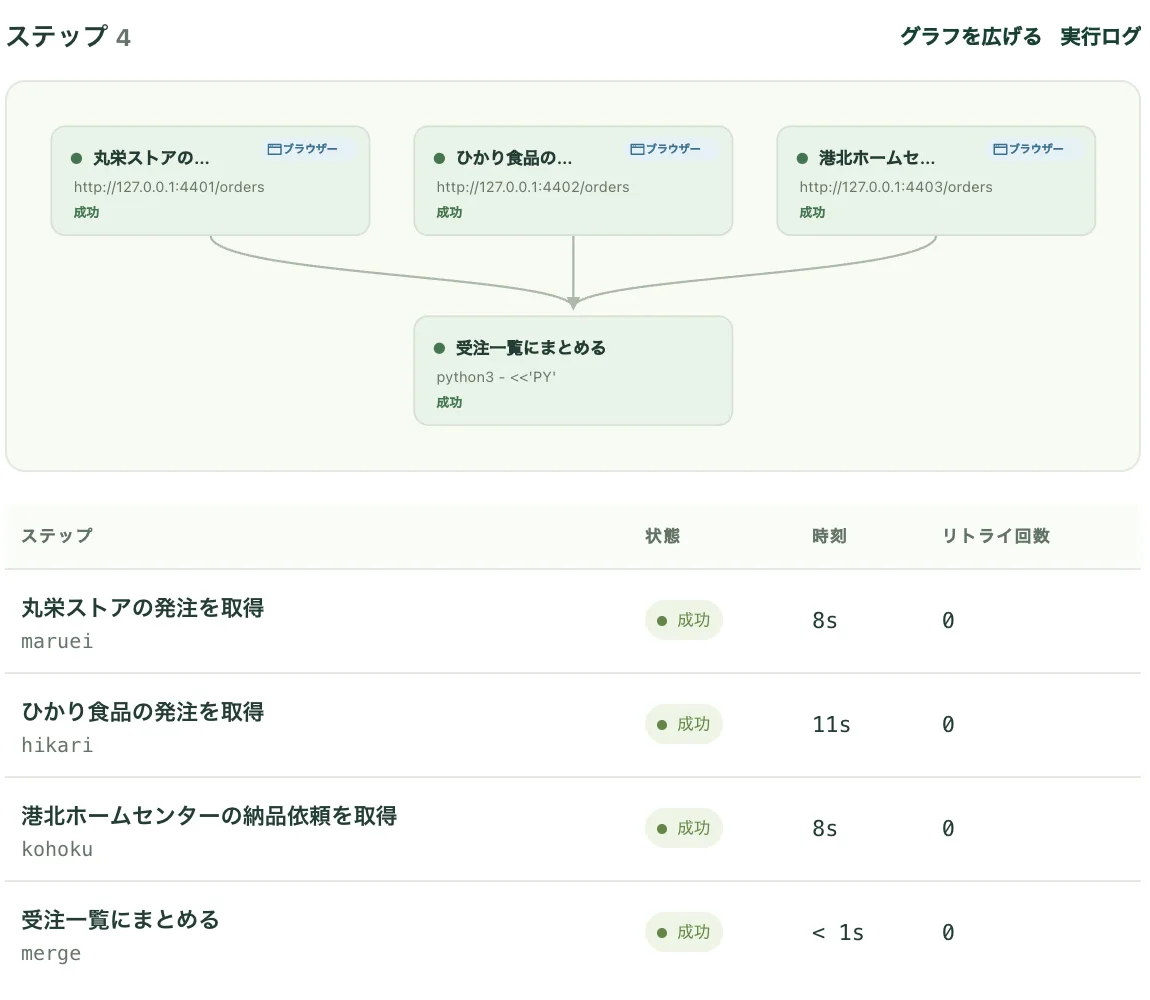
The workflow has four steps: three browser steps that each download one customer’s CSV, and one that merges them into a single order list.
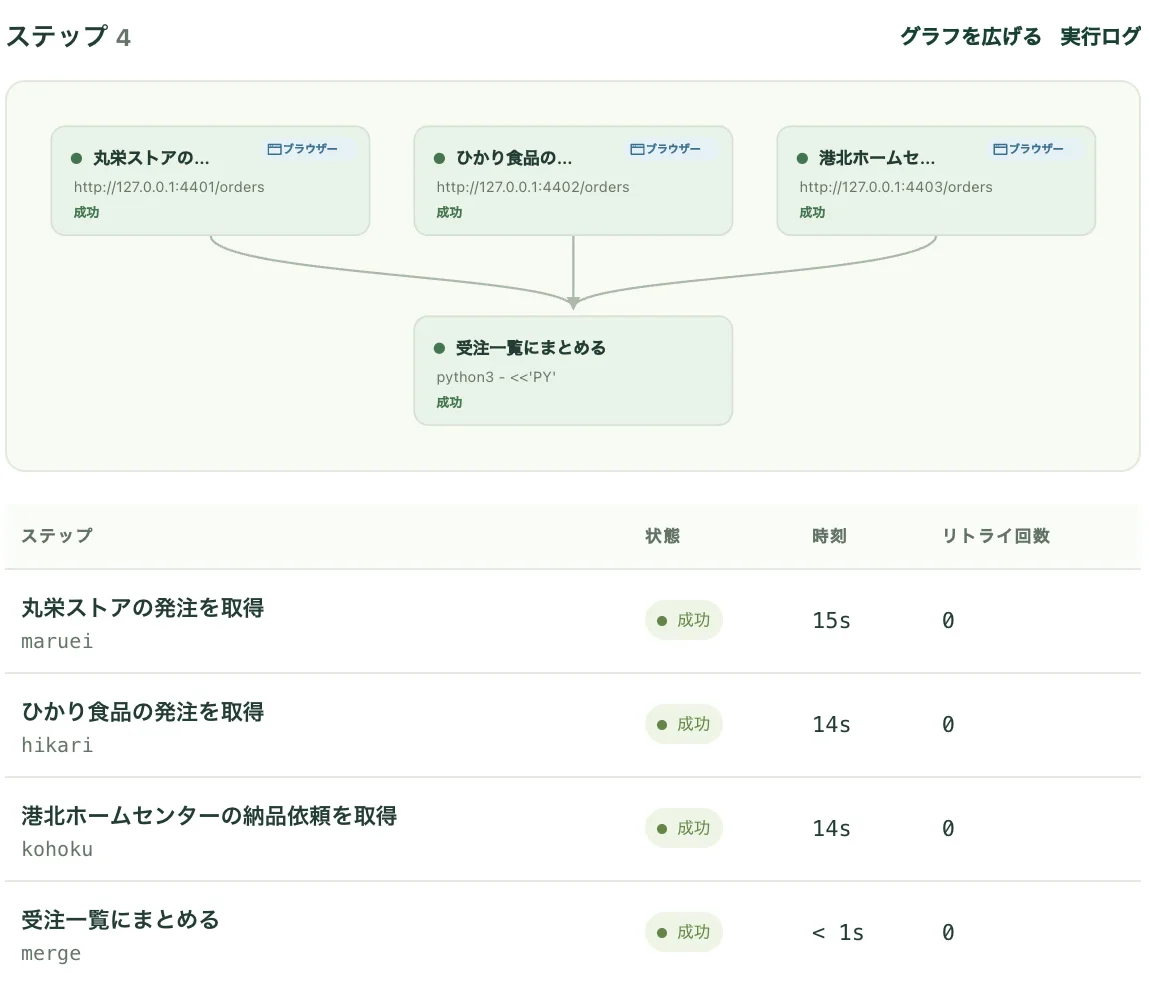
On the site that asks for a one-time code, the run stops and asks for it. Once someone enters the code, the browser continues on the page it left open.
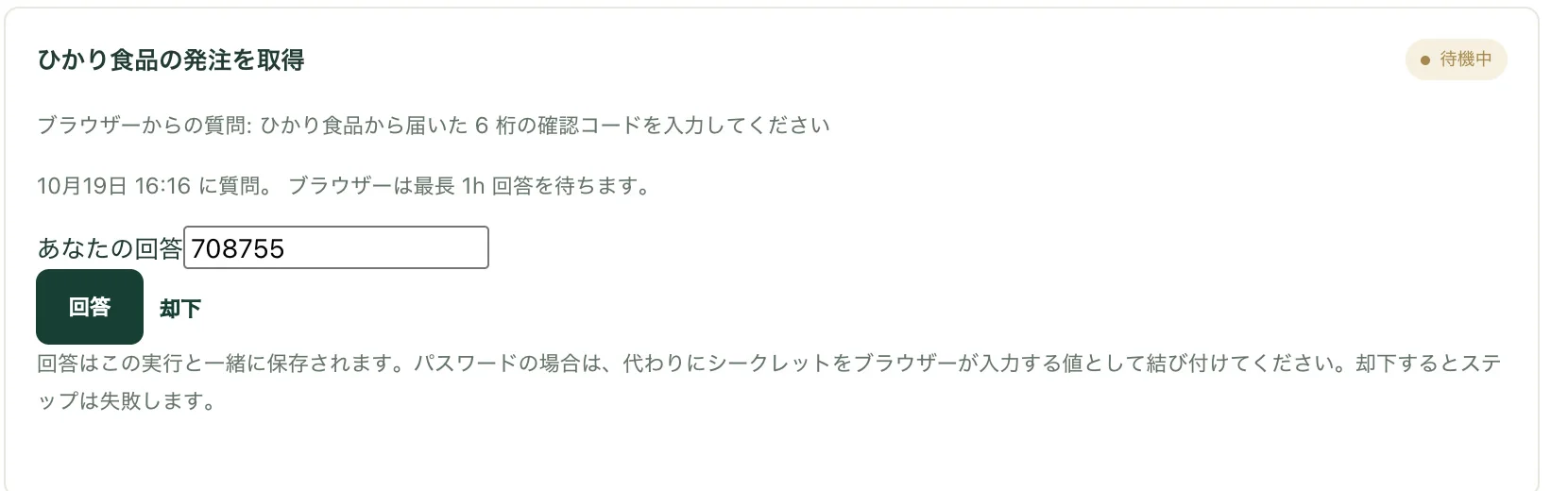
| First run (AI learns the steps) | Second run (replays them) | |
|---|---|---|
| Supermarket | 15 s | 8 s |
| Food distributor (one-time code) | 14 s | 11 s |
| Home center | 14 s | 8 s |
| Operations that ran without AI | On each site, only opening the page, the check, and the download | Every operation on each site (7 / 7, 9 / 9, 7 / 7) |
| AI model usage | About 33,000 tokens across the three sites | None |
The three sites were collected in parallel, and the times exclude waiting for a person to type the code. In the first run, AI read each page to decide where to type and what to click, and the steps recorded those operations. The second run replayed them as recorded, without asking AI. When a screen changes and a recorded operation can no longer be found, AI looks for that one operation again (why RPA robots stop when screens change).
Putting the CSVs in one format
The three CSVs differed in column names and in how they gave quantities. The merge step maps them to shared columns:
| Shared column | Supermarket | Food distributor | Home center |
|---|---|---|---|
| Order number | 発注No | order_id | 伝票番号 |
| Delivery date | 納品予定日 | delivery_date | 納品日 |
| Ship to | 納品先 | ship_to | 店名 |
| Item code | JANコード | item_code | 商品CD |
| Quantity | 発注数 | qty | cases × units per case |
| Unit price | 原単価 | unit_price | 単価 |
The result was one order list (CSV) of 9 rows from 3 customers. This run stops at the list; it does not enter it into a sales system. For that, use the sales system’s CSV import, or add a step that works its import screen.
When this does not fit
- The customer offers a data feed: 流通BMS, an API, or file delivery is steadier
- Every sign-in needs a one-time code, and you want it to run when no one is around: someone must type the code, so it is never unattended
- The site turns automation away with image challenges or similar: don’t automate it
- Very large daily volumes: a data feed suits that better than the screens
Summary
- For each customer’s ordering site, first check for a data feed, and automate the screens only where there is none
- The kind of sign-in decides how it runs: a user ID and password run unattended; with a one-time code, a person types only the code
- Steps AI learns on the first run are replayed without AI from the second
Running this collection at a set time with no one present is recorded on the same sites in scheduling Power Automate Desktop.
In a PoC, we start with one of your customers’ sites and test on your real screens and data (early access partners). For the related use case, see take in orders from retailers’ Web-EDI.
Sources
- LOGISTICS TODAY: 流通BMS adoption spreads to smaller companies, passing 21,600 (July 8, 2025; the council’s estimate; in Japanese)
Verify it on your own work as an early access partner
We run Kitewell workflows with you on the same screens and data as production, and measure processing time, success rate, and how easily a stopped run is fixed.
Choose one to three tasks from robots that stop when screens change, integration with systems that have no API, and document work that needs judgment or approval, and we run Kitewell workflows on the same screens and data as production.
What we ask of you
- One contact person for the work being automated
- Test accounts and access to the screens involved
- Sample data close to production
- A machine to run Kitewell
- An API key for the AI model you will use, or an in-house model server
- Regular feedback during the verification
- Help publishing the joint verification case study
Verify Kitewell with us on your own work
- Kitewell's developers support you directly, from the first interview to production
- Features your work needs are added to Kitewell itself, with priority
- The results are published as a joint verification case study, without your company name if you prefer
- Terms are agreed individually, once we know the work and its scale
- Kitewell is in public beta (0.x); features and screens may change